Campaign Criteria Panel
The Campaign Criteria panel is used to define criteria for customers to include in a sales campaign or a quick search. After entering the criteria and viewing the customers that meet the criteria, leads can be sent to FOCUS or the Customer application in the Digital Retail Platform. The default display settings of this panel can be customized using the Campaign Criteria Defaults window.

|
The Campaign Criteria panel displays on the Sales Campaign screen. To access the Sales Campaign screen, click the |
 (Sales Campaign) icon.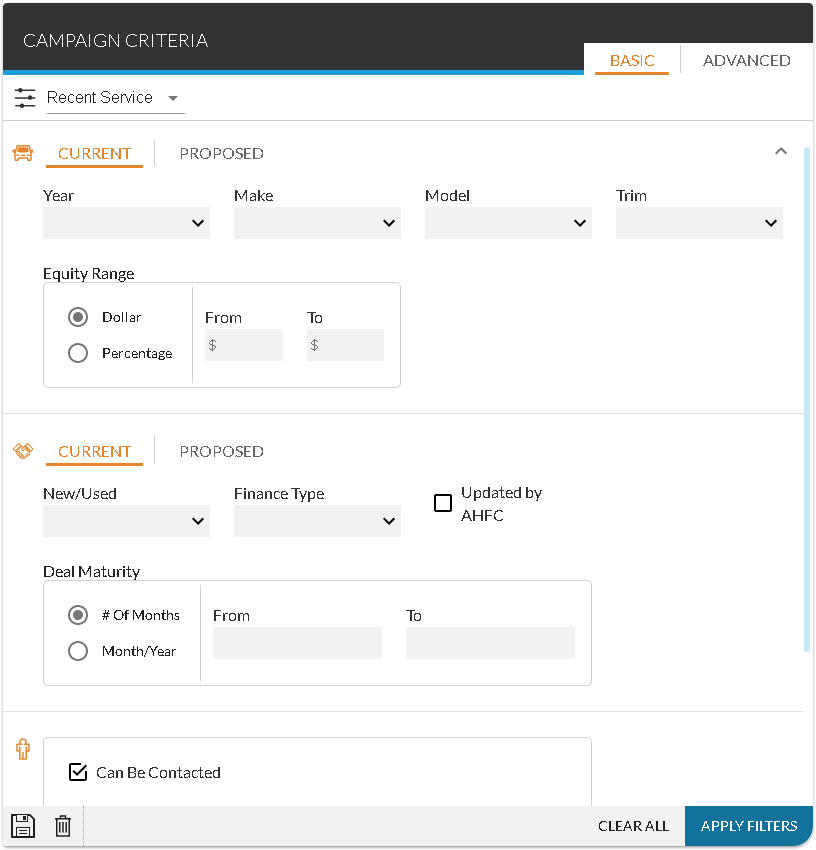
The following tabs are available in the Campaign Criteria panel.
- Basic tab. The Basic tab is used to define criteria for the sales campaign. This tab includes the most common criteria used when building a campaign.
- Advanced tab. The Advanced tab is used to define additional criteria for the sales campaign, such as the length of the deal and the financial institution associated with a deal. This tab includes the criteria from the Basic tab as well as additional, more detailed criteria.
This panel can also be used to save the entered search criteria. Saved searches are called Quick Campaigns and can help to reduce the amount of time required to search for customers to include in a sales campaign. To save the entered criteria, click the  (Save Search) icon. The Add Quick Search window displays. Enter a name for the quick campaign in the Quick Search Name field. To display the saved search as a quick campaign at the top of the Sales Campaign screen, select a rank in the Rank field. Then click the SAVE button to save the quick campaign.
To delete a quick campaign, display the campaign on the Campaign Criteria panel and click the  (Delete) icon. A message window displays confirming the deletion. Click the DELETE button to remove the campaign from the XtreamService application.
Click here for a list of products that may be mentioned in this help file.